
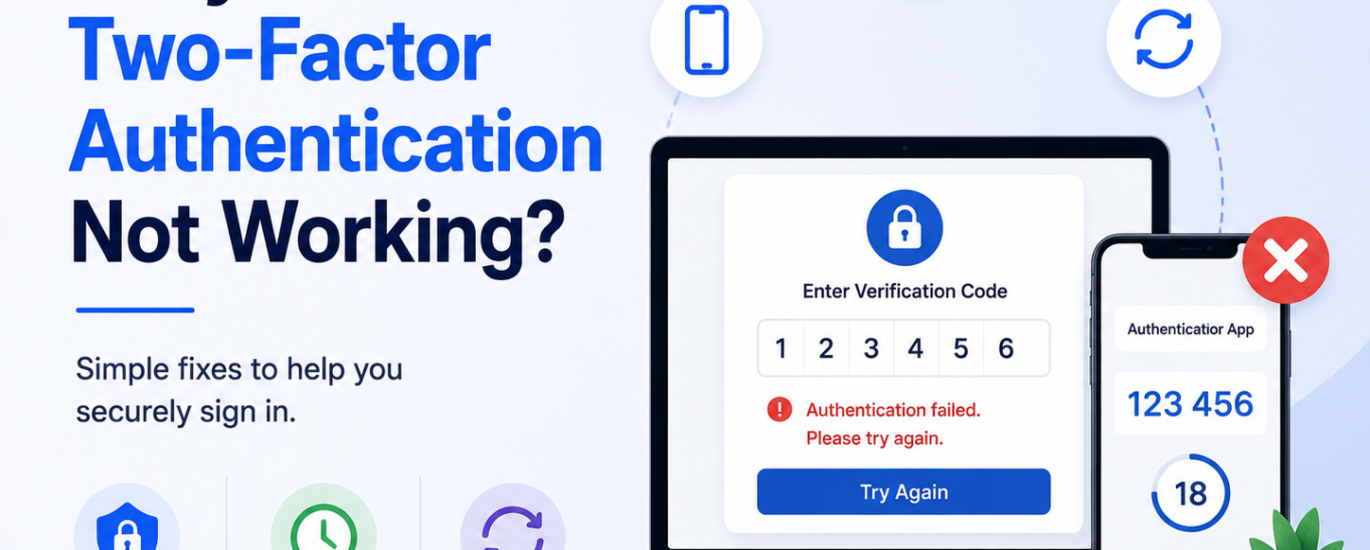
If your two-factor authentication (2FA) is failing, you may not receive verification codes, authenticator app codes may not work, or login approval requests may fail. Follow these step-by-step solutions to fix two-factor authentication issues quickly.
Step 1: Check Your Internet Connection
Make sure your device has a stable internet connection. Weak connectivity can delay or block verification codes and login approvals.
Step 2: Verify the Correct Phone Number
Ensure the registered mobile number linked to your email account is correct and active for receiving SMS verification codes.
Step 3: Check the Time on Your Device
Authenticator apps require accurate date and time settings. Enable automatic date and time synchronization on your device.
Step 4: Refresh or Restart Your Device
Restart your phone, tablet, or computer to fix temporary software glitches affecting two-factor authentication.
Step 5: Check for Delayed Verification Codes
Sometimes SMS or email verification codes are delayed due to network congestion. Wait a few minutes and request a new code if needed.
Step 6: Verify the Authenticator App
Ensure you are using the correct authenticator app linked to your account. Also confirm the account is properly added inside the app.
Step 7: Update Your Authenticator App
Outdated authenticator apps may generate invalid or expired codes. Install the latest updates from the official app store.
Step 8: Use Backup Codes
If your authenticator app or phone is unavailable, use the backup recovery codes provided when two-factor authentication was enabled.
Step 9: Disable VPN or Firewall Temporarily
VPNs, firewalls, or security software can interfere with secure login verification. Temporarily disable them and try again.
Step 10: Clear Browser Cache & Cookies
If you are signing in through a browser, clear cache and cookies to remove temporary login conflicts.
Step 11: Re-Sync the Authenticator App
Some authenticator apps allow time synchronization or re-sync options to fix invalid code errors.
Step 12: Verify Account Security Settings
Review your account security settings and make sure two-factor authentication is properly enabled for the correct device or app.
Step 13: Try Another Login Method
If available, choose another verification option such as email verification, backup phone number, or recovery method.
Step 14: Contact Email Provider Support
If two-factor authentication still fails, contact your email provider’s support team for account recovery and advanced troubleshooting assistance.