
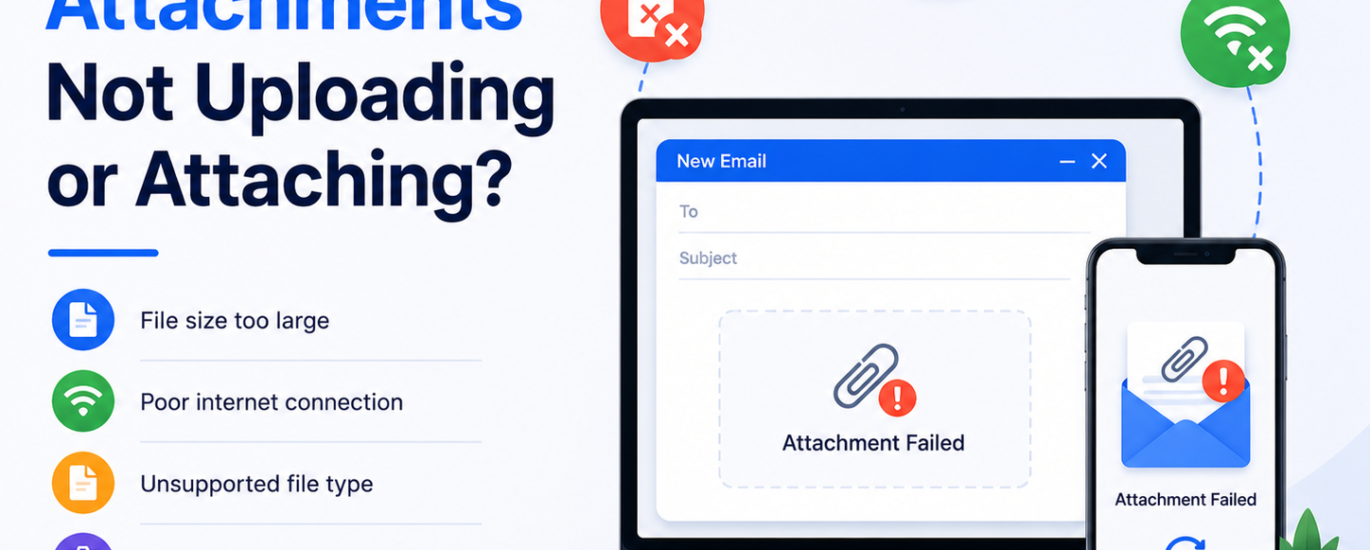
If your email attachments are failing to upload or attach, the issue may be caused by file size limits, unsupported formats, internet problems, browser issues, or email settings. Follow these step-by-step solutions to fix attachment upload problems quickly.
Step 1: Check Your Internet Connection
A weak or unstable internet connection can interrupt file uploads. Make sure your Wi-Fi or mobile data connection is stable.
Step 2: Verify the File Size
Most email providers have attachment size limits. Large files may fail to upload or attach properly. Compress large files or split them into smaller files if needed.
Step 3: Check the File Format
Certain file types may be blocked for security reasons. Ensure the attachment uses a supported and safe file format.
Step 4: Rename the File
Special characters or long file names can sometimes cause upload errors. Rename the file using a simple name and try again.
Step 5: Refresh or Restart the Email App
Close and reopen your email application or browser to clear temporary glitches affecting attachments.
Step 6: Clear Browser Cache & Cookies
If you are using webmail, clear your browser cache and cookies to remove corrupted temporary files causing upload problems.
Step 7: Try Another Browser or Device
Open your email account on a different browser, computer, or mobile device to check whether the issue is device-specific.
Step 8: Update Your Email App or Browser
Outdated email apps and browsers may create compatibility issues. Install the latest updates before trying again.
Step 9: Disable Browser Extensions Temporarily
Certain browser extensions or ad blockers may interfere with attachment uploads. Disable them temporarily and test again.
Step 10: Check Available Storage Space
Low device storage or full mailbox storage can prevent attachments from uploading successfully. Free up space if necessary.
Step 11: Disable Antivirus or Firewall Temporarily
Security software may block file uploads for protection reasons. Temporarily disable antivirus or firewall settings and try attaching the file again.
Step 12: Use Cloud Storage for Large Files
If the file is too large, upload it to a cloud storage service and share the download link instead of attaching the file directly.
Step 13: Remove & Re-Add the Email Account
If the issue continues in an email application, remove the email account and add it again using the correct settings.
Step 14: Check Email Provider Server Status
Sometimes attachment upload failures happen due to temporary server outages or maintenance from the email provider.
Step 15: Contact Email Support
If attachments still fail to upload or attach, contact your email provider’s support team for advanced troubleshooting and technical assistance.