
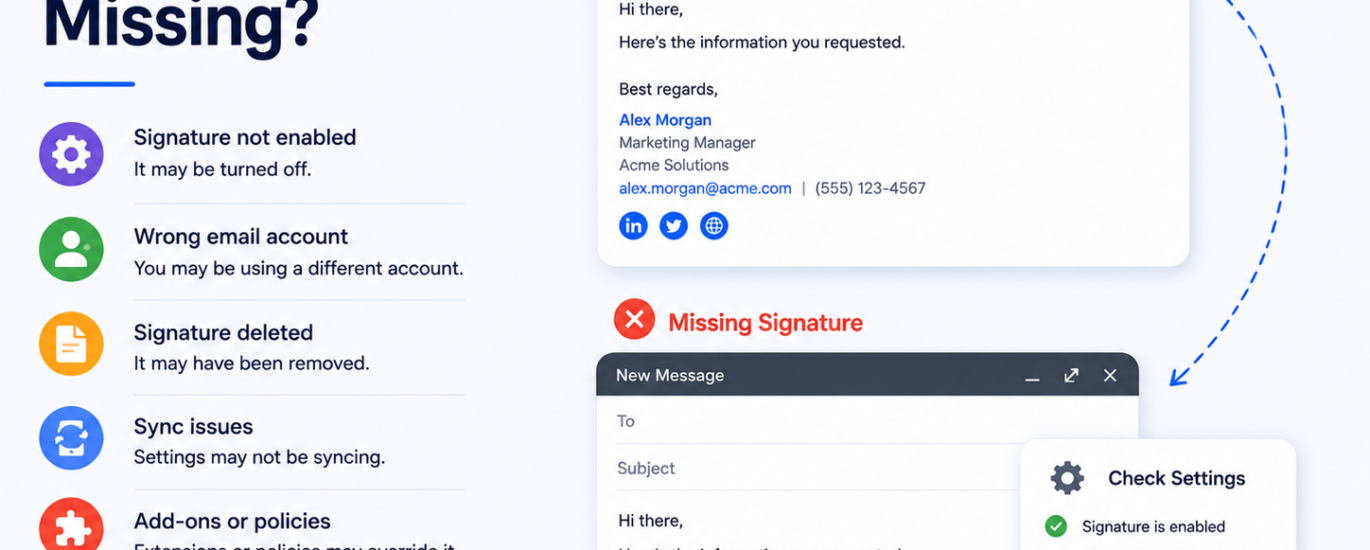
If your email signature is not appearing in outgoing emails, the issue may be caused by disabled signature settings, syncing problems, incorrect account selection, or formatting errors. Follow these step-by-step solutions to restore your email signature quickly.
Step 1: Check Signature Settings
Open your email settings and make sure the email signature feature is enabled for your account.
Step 2: Verify the Correct Email Account
If you use multiple email accounts, ensure the signature is assigned to the correct account you are sending emails from.
Step 3: Create or Re-Add Your Signature
Your signature may have been deleted accidentally. Create a new signature or re-add the missing signature content.
Step 4: Save Signature Changes Properly
After editing your signature, click the “Save” or “Apply” button before closing the settings page.
Step 5: Check Mobile & Desktop Sync
Sometimes signature settings do not sync across devices. Verify the signature settings separately on mobile and desktop applications.
Step 6: Update Your Email Application
Outdated email apps may cause signature display problems. Install the latest updates from the official app store or provider website.
Step 7: Check Plain Text Mode
Plain text email mode may remove formatting and signatures. Switch to HTML or rich text email format if available.
Step 8: Disable Browser Extensions Temporarily
Certain browser extensions or add-ons may interfere with email signatures in webmail platforms. Disable them temporarily and test again.
Step 9: Clear Browser Cache & Cookies
If you use webmail, clear your browser cache and cookies to remove temporary issues affecting signature loading.
Step 10: Verify Automatic Signature Insertion
Some email apps require enabling automatic signature insertion for new emails and replies separately.
Step 11: Check Company Policies or Admin Restrictions
Work or business email accounts may have administrator policies controlling email signatures. Contact your IT administrator if needed.
Step 12: Remove & Re-Add the Email Account
Deleting and re-adding your email account can refresh corrupted settings causing signature problems.
Step 13: Test on Another Device or Browser
Try sending emails from another device or browser to determine whether the issue is device-specific.
Step 14: Contact Email Support
If your email signature is still missing, contact your email provider’s support team for advanced troubleshooting and configuration assistance.