
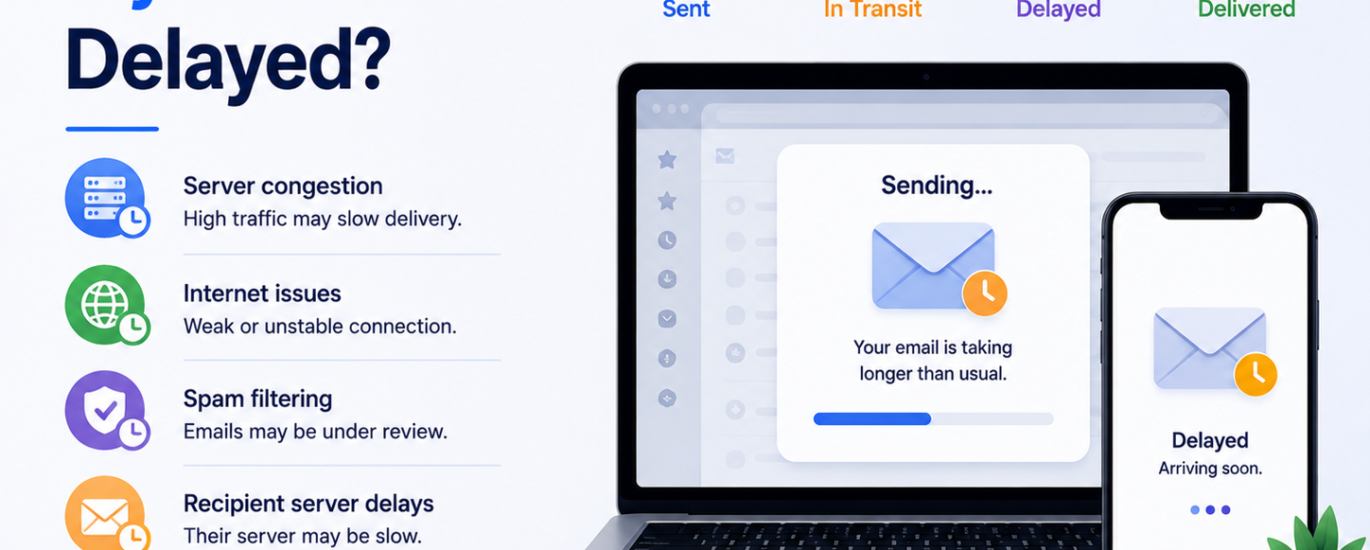
Delayed emails can interrupt communication and prevent important messages from arriving on time. Email delays are commonly caused by slow internet connections, server issues, syncing problems, large attachments, or incorrect email settings. Follow these step-by-step solutions to fix delayed email problems quickly.
Step 1: Check Your Internet Connection
A weak or unstable internet connection can delay sending and receiving emails. Make sure your device is connected to a reliable network.
Step 2: Refresh Your Inbox
Open your email application and manually refresh the inbox to force synchronization and check for pending emails.
Step 3: Restart Your Device & Email App
Temporary software glitches can slow email delivery. Restart your mobile device, computer, or email application to refresh connections.
Step 4: Verify Email Server Settings
Incorrect IMAP, POP, or SMTP settings can create delays in email synchronization and message delivery.
Step 5: Check Email Provider Server Status
Sometimes email providers experience temporary outages or server maintenance that can delay incoming and outgoing emails.
Step 6: Reduce Large Attachments
Emails with large attachments may take longer to upload and deliver. Compress files or use cloud storage links when possible.
Step 7: Check Mailbox Storage Space
A full inbox or limited storage can delay new emails from arriving. Delete unnecessary emails, spam, and large attachments.
Step 8: Disable Battery Saver Mode
Battery optimization settings on mobile devices may restrict background syncing and delay email notifications.
Step 9: Update Your Email Application
Outdated email apps may cause syncing and performance issues. Install the latest version from the official app store or provider website.
Step 10: Clear Cache & Temporary Files
Corrupted cache files in your browser or email application can interfere with email performance and synchronization.
Step 11: Disable Antivirus or Firewall Temporarily
Security software may sometimes block or delay email traffic. Temporarily disable firewall or antivirus protection and test again.
Step 12: Verify Automatic Sync Settings
Ensure automatic sync is enabled in your email application so emails update in real time without manual refresh.
Step 13: Remove & Re-Add Your Email Account
Deleting and re-adding the email account can fix configuration issues causing delayed emails on mobile and desktop devices.
Step 14: Test on Another Device
Access your email account from another device or browser to determine whether the issue is device-specific.
Step 15: Contact Email Support
If emails are still delayed, contact your email provider’s support team for advanced troubleshooting and server-related assistance.