
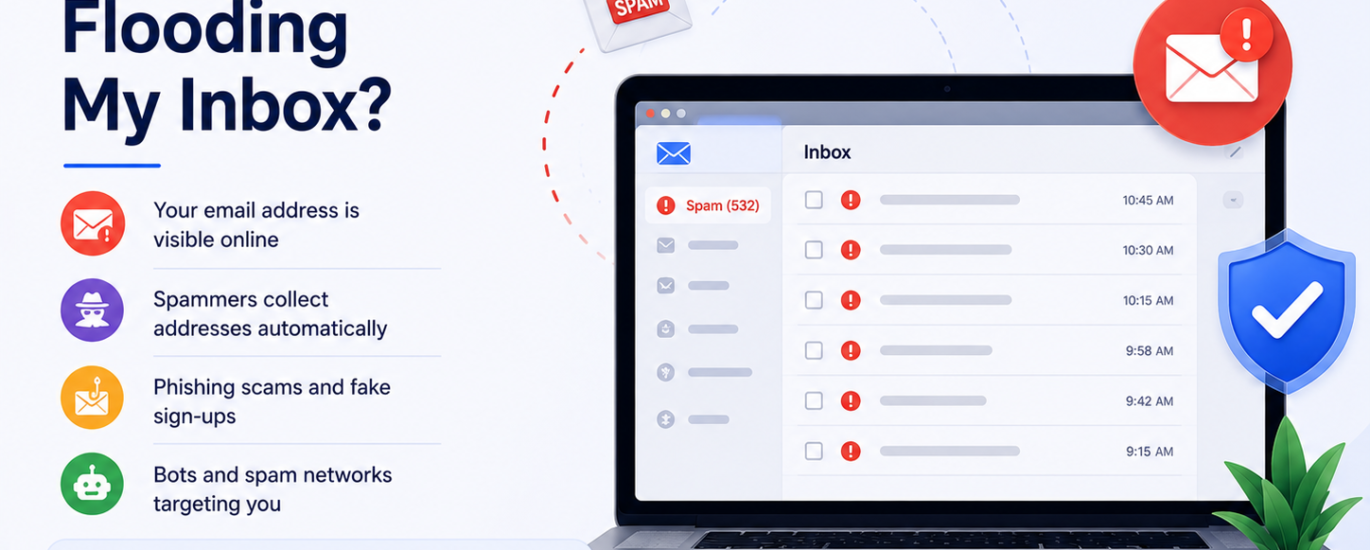
Spam emails can overload your inbox with unwanted advertisements, phishing messages, fake promotions, and suspicious links. These emails often appear because your email address was shared publicly, added to marketing lists, exposed in a data breach, or targeted by automated spam bots. Follow these step-by-step solutions to reduce spam emails and improve your inbox security.
Step 1: Mark Spam Emails as Junk
Open unwanted emails and click the “Spam” or “Junk” option. This helps your email provider identify and block similar spam messages in the future.
Step 2: Block Suspicious Senders
Block email addresses that repeatedly send spam or suspicious messages to stop them from contacting you again.
Step 3: Unsubscribe from Unwanted Emails
If the email is from a legitimate company or newsletter, use the unsubscribe link to stop receiving promotional messages.
Step 4: Avoid Opening Suspicious Emails
Do not open emails from unknown senders or click suspicious links and attachments, as this may confirm your email is active to spammers.
Step 5: Keep Your Email Address Private
Avoid sharing your email address publicly on websites, forums, or social media platforms where spam bots can collect it.
Step 6: Enable Spam Filters
Most email providers offer built-in spam filtering tools. Make sure spam protection and advanced filtering settings are enabled.
Step 7: Create Email Rules & Filters
Set up custom email filters to automatically move suspicious or unwanted emails into the spam or trash folder.
Step 8: Check for Data Breaches
If spam emails suddenly increase, your email address may have been exposed in a data breach. Change your password immediately and secure your account.
Step 9: Use a Strong & Unique Password
Protect your email account with a strong password that includes uppercase letters, numbers, and special characters.
Step 10: Enable Two-Factor Authentication
Activate two-factor authentication for extra account protection and to reduce the risk of unauthorized access.
Step 11: Scan Your Device for Malware
Malware or spyware on your device can expose your email information. Run a security scan using trusted antivirus software.
Step 12: Review Connected Apps & Permissions
Remove unknown third-party apps or services connected to your email account that may be sending spam or collecting your data.
Step 13: Create a Secondary Email for Sign-Ups
Use a separate email address for newsletters, online shopping, and public registrations to keep your primary inbox cleaner.
Step 14: Contact Your Email Provider
If spam emails continue despite filtering and blocking efforts, contact your email provider’s support team for additional spam protection assistance.