
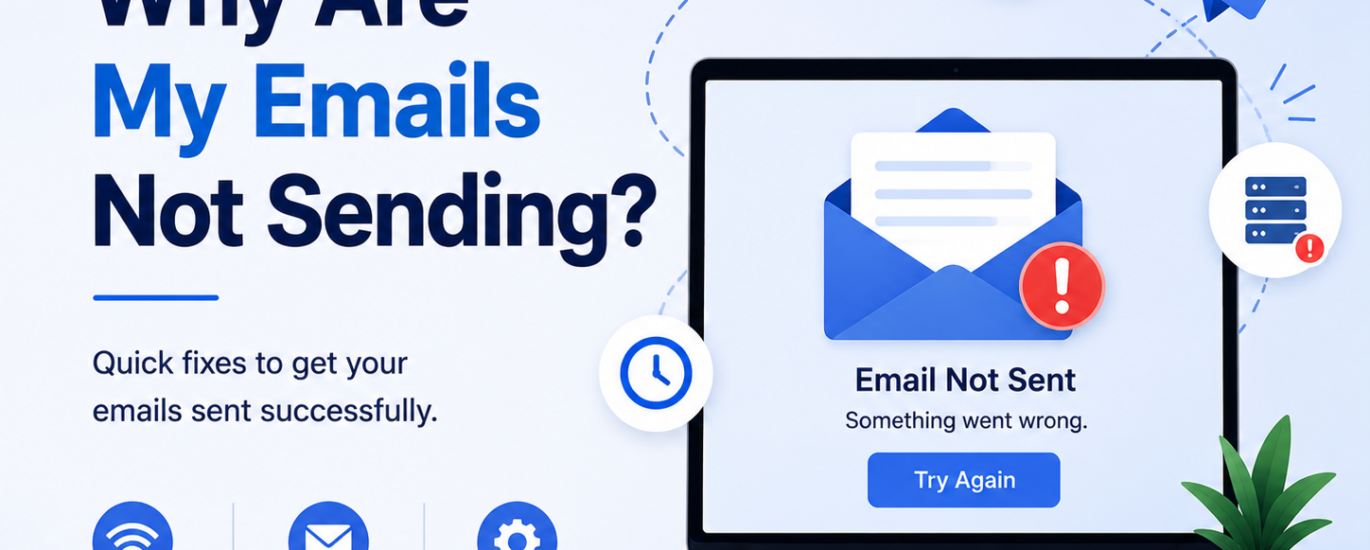
If you are not receiving emails in your inbox, the problem may be caused by sync issues, spam filters, storage limits, incorrect settings, or server problems. Follow these step-by-step solutions to fix email receiving issues quickly.
Step 1: Check Your Internet Connection
Ensure your device is connected to a stable internet connection. Poor connectivity can stop new emails from syncing properly.
Step 2: Refresh Your Inbox
Open your email app or webmail and manually refresh the inbox to check for new messages.
Step 3: Check Spam & Junk Folders
Important emails may be automatically filtered into the spam or junk folder. Review these folders and mark trusted senders as safe.
Step 4: Verify Your Email Address
Make sure the sender is using the correct email address without spelling mistakes or missing characters.
Step 5: Check Mailbox Storage Space
A full mailbox may prevent new emails from arriving. Delete unnecessary emails, spam, and large attachments to free up storage space.
Step 6: Verify Email Sync Settings
Ensure that email synchronization is enabled in your app or device settings so emails can update automatically.
Step 7: Check IMAP, POP & SMTP Settings
Incorrect server settings can stop incoming emails from syncing properly. Verify that all incoming and outgoing mail settings are correct.
Step 8: Disable Email Filters & Forwarding Rules
Custom filters, blocked senders, or forwarding rules may redirect emails away from your inbox. Review and remove unwanted filters.
Step 9: Restart Your Device & Email App
Restart your phone, computer, or tablet and reopen the email application to clear temporary glitches.
Step 10: Update Your Email Application
Outdated email apps can cause receiving and syncing problems. Install the latest version from the official app store or provider website.
Step 11: Clear Browser Cache & Cookies
If you use webmail in a browser, clear cache and cookies to remove corrupted temporary files affecting email loading.
Step 12: Disable Antivirus or Firewall Temporarily
Security software may sometimes block incoming email connections. Disable firewall or antivirus protection temporarily and test again.
Step 13: Remove & Re-Add Your Email Account
Delete the email account from your device and add it again using the correct login credentials and server settings.
Step 14: Check Email Provider Server Status
Sometimes the email provider’s servers may be down or under maintenance, which can delay incoming emails.
Step 15: Contact Email Support
If you are still not receiving emails, contact your email provider’s support team for advanced troubleshooting and account assistance.