
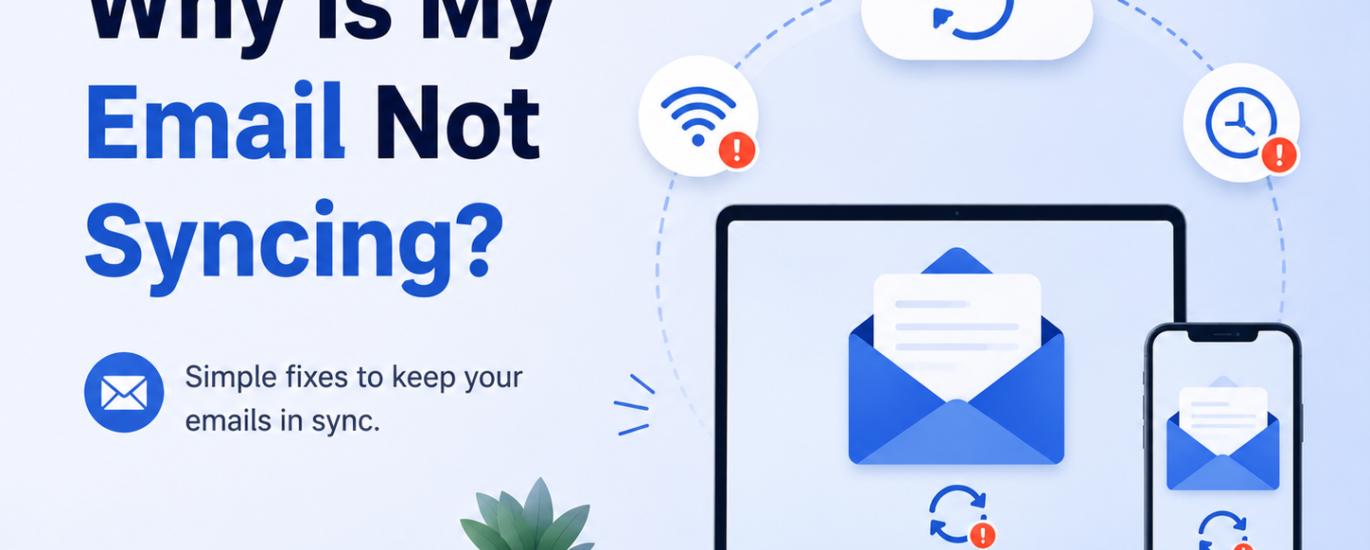
If your email is not syncing properly, you may experience delayed messages, missing emails, or folders not updating across devices. Follow these step-by-step solutions to fix email syncing problems quickly.
Step 1: Check Your Internet Connection
A weak or unstable internet connection can stop your emails from syncing. Make sure your Wi-Fi or mobile data is working properly.
Step 2: Refresh Your Email Application
Open your email app and manually refresh the inbox. Sometimes syncing resumes after a simple refresh.
Step 3: Verify Sync Settings
Go to your email application settings and make sure email sync is enabled. Check whether automatic sync is turned on for your account.
Step 4: Restart Your Device
Restart your mobile phone, tablet, or computer. Temporary software glitches can often interrupt syncing.
Step 5: Update Your Email App
Outdated email applications may cause synchronization problems. Install the latest version from the official app store or website.
Step 6: Check Date & Time Settings
Incorrect date and time settings can interfere with email server connections. Enable automatic date and time settings on your device.
Step 7: Verify IMAP & POP Settings
Incorrect IMAP, POP, or SMTP settings can prevent proper synchronization. Make sure the incoming and outgoing mail server settings are correct.
Step 8: Clear Cache & App Data
If you are using an Android device, clear the email app cache and temporary data from the app settings to fix syncing errors.
Step 9: Disable Battery Saver Mode
Battery saver or background restriction settings may stop the email app from syncing automatically. Allow the app to run in the background.
Step 10: Check Email Storage Space
A full mailbox can stop new emails from syncing. Delete unnecessary emails, spam, or large attachments to free up storage space.
Step 11: Remove & Re-Add the Email Account
Remove the email account from your device and add it again using the correct login credentials and server settings.
Step 12: Check Email Server Status
Sometimes the email provider’s servers may be temporarily down. Visit the official service status page to check for outages or maintenance updates.
Step 13: Disable Firewall or Antivirus Temporarily
Certain security software may block email synchronization. Temporarily disable firewall or antivirus protection and test the sync again.
Step 14: Contact Email Support
If the syncing issue still continues, contact your email provider’s support team for advanced troubleshooting and account assistance.